
Getting Started with clashN
Last updated:
This guide covers the clashN ZIP build for Windows. Extract the app, confirm that its runtime and core can start, then add a compatible profile before switching on the system proxy.
What is clashN?
clashN is a Windows client that uses the Mihomo proxy core. A profile tells the core which proxies and routing settings to load. The upstream project also documents a subscription conversion option for some V2Ray subscriptions. The archive and core combination matters when checking whether a newer profile works.
How to Download and Install?
Extract the full ZIP to a folder you can keep, then run ClashN.exe from the extracted files. The project lists Microsoft .NET 8 Desktop Runtime and the Mihomo core as requirements. Check the archive contents and the upstream instructions if the app reports a missing runtime or core. Download clashN for Windows.
Interface Overview
Find the profile controls in the main window. Use them to add or select a profile and confirm it loads. The Windows notification area gives you access to the running client and its system proxy controls. Consult the status or log output if the core cannot start.
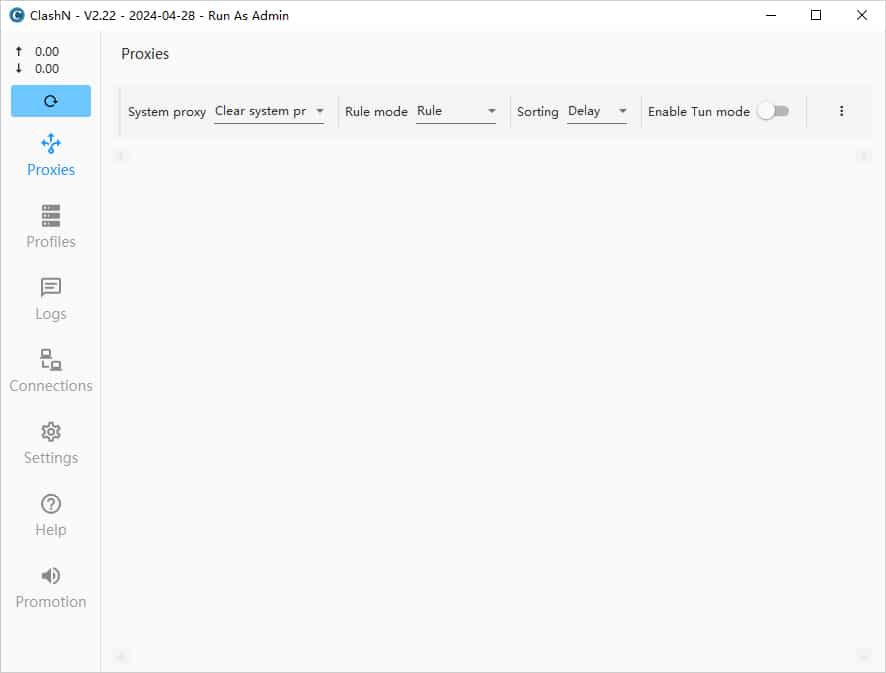
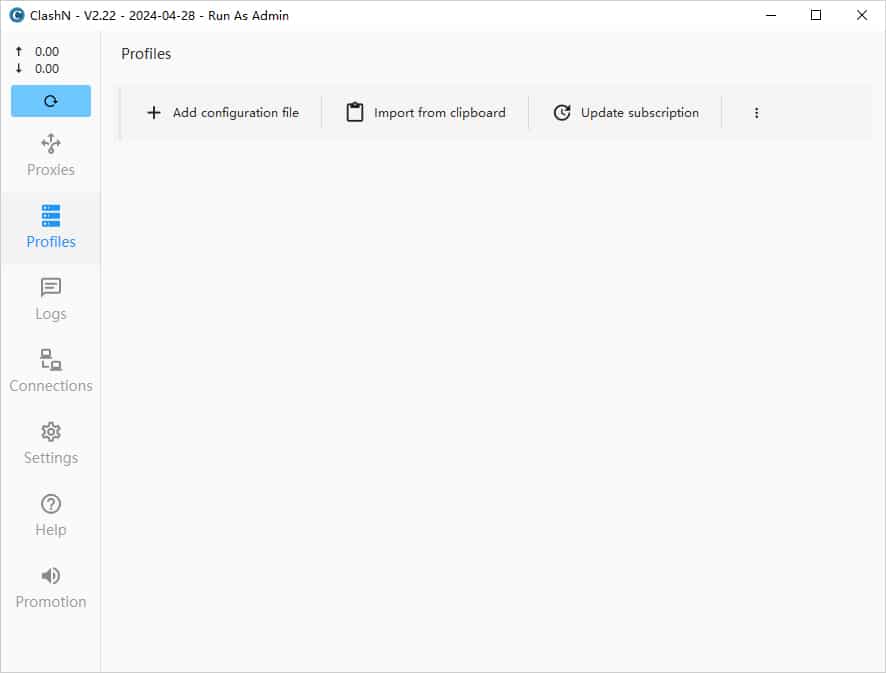
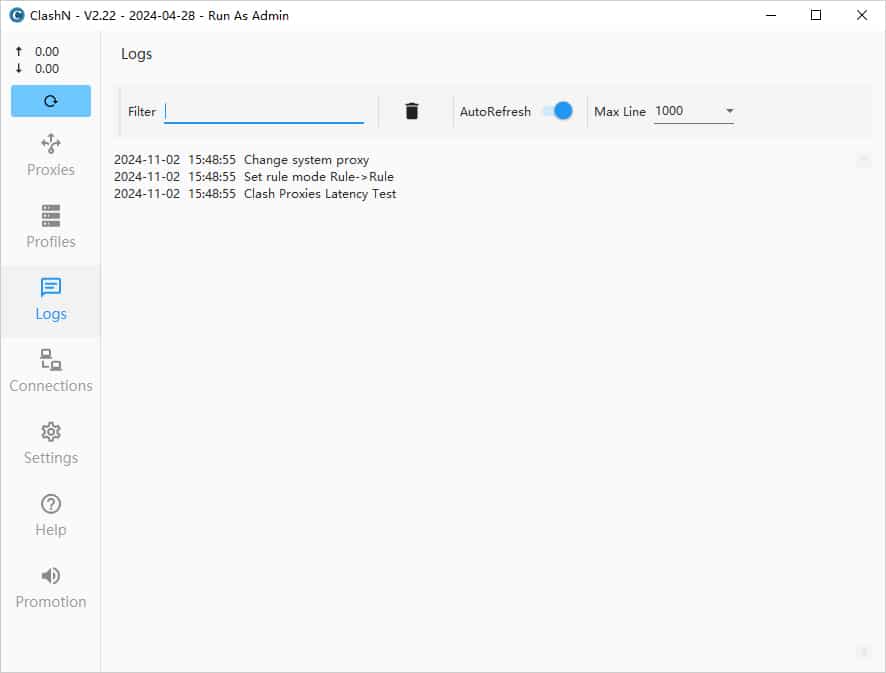
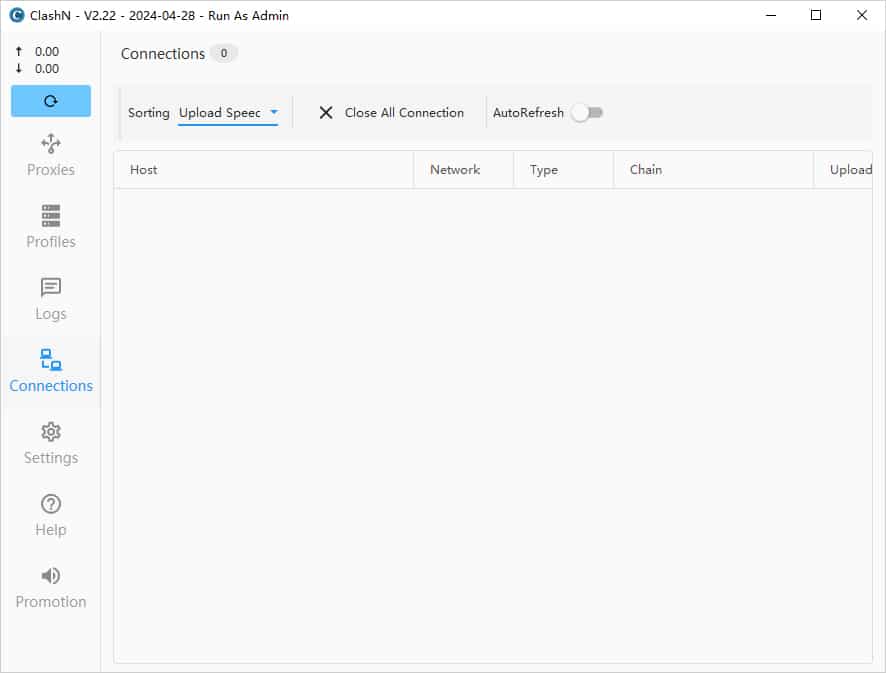
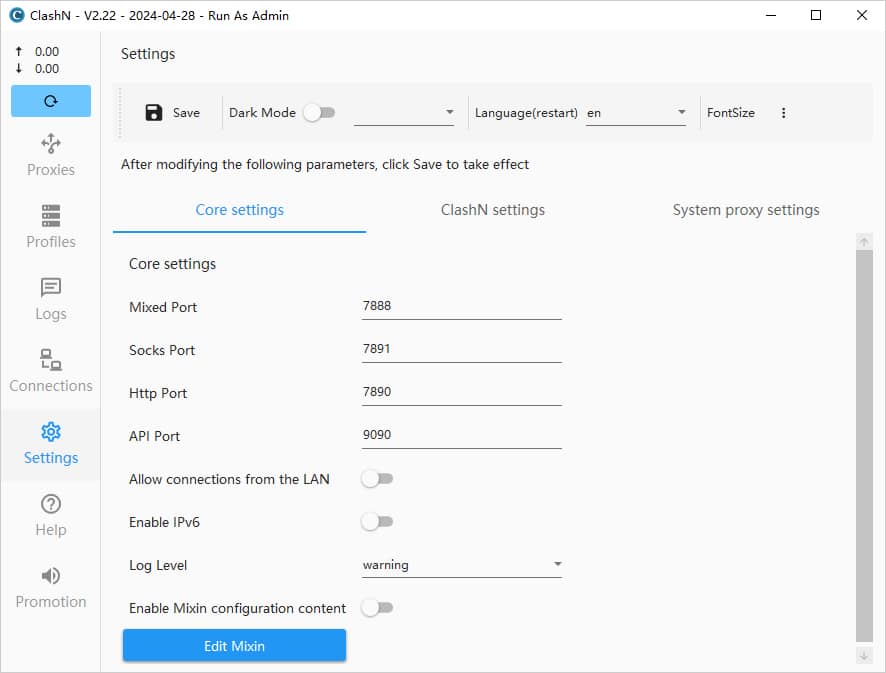
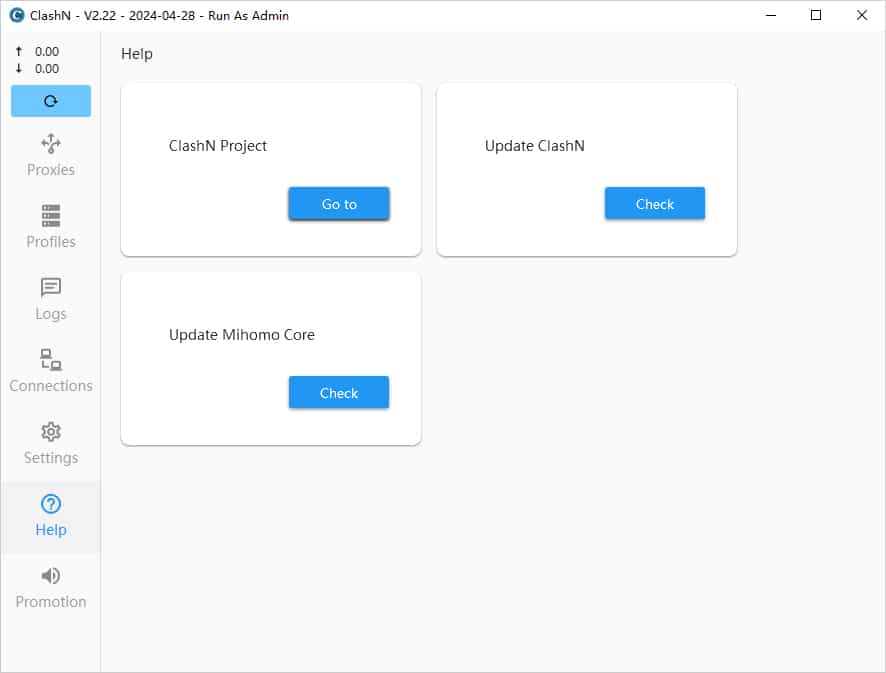
Servers
Start with a profile that your installed Mihomo core can read. If you only have a V2Ray subscription, the upstream README describes an optional conversion setting when adding a profile. Confirm the resulting configuration actually loads in this build before using it. clashN subscription options.
Quick Configuration
- Add your profile through the main window and check that it appears in the profile list.
- Select the profile, apply it, and verify that the core starts. Check the available proxy groups before using a node.
- Enable the Windows system proxy in clashN if you want compatible Windows apps to use it. Check your browser with a familiar site.
- When finished, turn off the system proxy from clashN.
If the app won’t open, first check the extracted files and the .NET Desktop Runtime. If the window opens but the profile fails, check the core version and logs for an unsupported option or a missing executable. clashN FAQ.